Showing posts with label OIC. Show all posts

Saturday, 1 November 2025

AI@OIC - 25.10 Release


AI@OIC – 25.10

Oracle has recently introduced a suite of new AI Design features in the 25.10 release, aimed at enhancing user experience and streamlining complex workflows. In this blog post, I will delve into the specifics of these innovative tools, discuss their practical applications in professional environments, and explain how they empower users to design smarter solutions more efficiently.


Build Integrations using Natural Language

A screenshot of a computer

AI-generated content may be incorrect.


Upon selecting "Create Project," you are presented with the option to establish an integration by interacting with the chatbot interface using natural language.

A screenshot of a computer

AI-generated content may be incorrect.

Briefly describe your requirements in the chat interface. “Create an integration which pick up the new items file from an FTP and creates the items in SCM Cloud” 

A screenshot of a computer

AI-generated content may be incorrect.

If there are existing Recipes and accelerators available within OIC, you’ll have the option to select them; otherwise, you will be given the choice to start a New Project. 

A screenshot of a computer

AI-generated content may be incorrect.


Please provide the necessary information to initiate the project creation process.

A screenshot of a computer

AI-generated content may be incorrect.

Click Add to create an integration.

A screenshot of a computer

AI-generated content may be incorrect.

 Click on Create to create a new integration

A white background with black text

AI-generated content may be incorrect.

Choose your integration pattern. 

A screenshot of a application

AI-generated content may be incorrect.


Provide necessary information to create the new integration and click on create.

A screenshot of a computer

AI-generated content may be incorrect.


As you see the OIC Connection are created automatically based on the project description provided in the previous steps. Edit the Integration created by click on the Edit Option


Enter a brief description of the integration and click on the generate button.

A screenshot of a computer

AI-generated content may be incorrect.


A screenshot of a computer

AI-generated content may be incorrect.


The AI Capability available within OIC will generate the flow on the fly which can be configured as per the business needs. 

A screenshot of a computer

AI-generated content may be incorrect.


Save the integration and if you want AI to add additional capabilities then you reuse the AI Interactions section to further enhance the integration.


A screenshot of a computer

AI-generated content may be incorrect.


A screenshot of a computer

AI-generated content may be incorrect.

Click on on Thumbs up icon to accept the flow or reject the changes and keep interacting with the AI to further refine the flow.

A screenshot of a computer

AI-generated content may be incorrect.


OIC Connections will be automatically for you and you just need to configure these connections.


Additionally, documentation for the integration can be generated automatically by selecting the "Learn about this integration" option provided.

A white rectangular object with a black border

AI-generated content may be incorrect.


A screenshot of a computer

AI-generated content may be incorrect.


Click the download button to save the documentation as a .pdf, or choose to regenerate it.

A screenshot of a computer

AI-generated content may be incorrect.


The screen below shows the sample documentation generated.

A screenshot of a computer

AI-generated content may be incorrect.


These enhancements enable users to create intelligent and efficient solutions with minimal manual configuration, utilizing AI to optimize and customize integration workflows. I am looking forward to the developments planned for future releases.


Tuesday, 5 March 2019

Expose Web Service as REST API using Oracle Integration Cloud

Exposing Web Service as REST API

Oracle Fusion ERP Cloud provides numerous Web / REST Services for integration and with each release Oracle is adding more and more services.  I have come across scenarios where you have a Web Service available for integration but don't have the equivalent REST Service available.

This might be a problem when you are developing custom applications in VBCS as VBCS can only work with REST Services at this point of time. To overcome this problem, we can leverage Integration Cloud and expose the Web Service as REST API.

In this post I will provide details around how to expose Web Services as REST API using OIC.

Create a REST Connector and Configure the Connection / Security details.


Create an Oracle ERP Cloud adapter and Configure the Connection / Security details.


Create a new Integration and Select Basic Routing Style.


Enter the relevant integration details after selecting the style (Integration Name, Identifier, Description and Package Details)

Select the REST Connector and drop it on the Trigger Section and Enter the details as shown below.


Click on next to configure the Request details of the service.


I have used the below JSON data to configure request.

{ "OrganizationCode" : "XX", "ItemClass" : "Root Item Class", "ItemNumber" : "Test Demo Item - 001", "ItemDescription" : "Test Demo Item - 001", "ItemStatusValue" : "Active", "LifecyclePhaseValue" : "Production", "PrimaryUOMValue" : "Each" }

Click on Next to configure the Response details.


I have used the below JSON data for configuring the response.

{  "ItemId" : 999994000402981,     "OrganizationId" : 111,     "OrganizationCode" : "XX",     "ItemCatalogGroupId" : 100000011369001,     "ItemClass" : "Root Item Class",
..................}

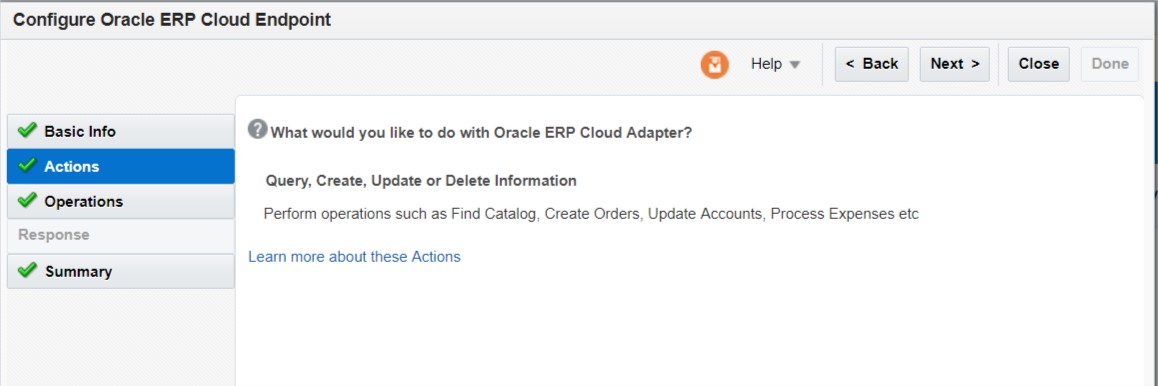
Now select the Oracle ERP Cloud adapter and drop it in the Invoke section and add the details as shown below.


Now add the mapping for request (mapping data between REST and ERP Cloud connector) and response (mapping data from ERP Cloud to REST Connector) as shown below.


Add the business identifier details for tracking.


Save the changes and activate the application.
Copy the Endpoint details as shown below (this endpoint will provide the metadata details).


Open the browser and enter the copied end point from previous step. The Endpoint will display the details below.

Copy the details under Endpoint URL.

Open SOAP UI and copy the Endpoint URL.
Select the method as POST and enter the details of the item to be created in the Request section.
Submit the request and the item will be created successfully in Oracle ERP Cloud.


The details of the item created in Oracle ERP Cloud are as shown below.


Sunday, 24 February 2019

Subscribing to Oracle Fusion ERP Events in OIC


Oracle Integration Cloud enables us to subscribe for the Events in ERP Cloud. In this example I will showcase how you can use item creation event and populate the data into VBCS business objects.

In order to enable ERP Cloud to send across the events to OIC we need to create a csf key as shown below.


Enter the details for enabling the business events notifications from ERP Cloud by configuring the below.


Csf-key – fill in identitydomain and service details
User name – OIC Username
Password – OIC Password


Create a business object in VBCS to store the item data as shown below.


Create an ERP Cloud Adapter in OIC and enter the relevant details


Create a REST Adapter to insert data into the Business Object create in VBCS


Create a new App Driven Orchestration integration


Add the ERP Cloud Adapter and configure it as shown below.


Now add the REST Adapter and configure it as shown below.


The sample json data which I have used is as given below

Json Sample :

{ "id" : 123, "itemNumber" : "abcd", "description" : "abcd", "organizationId" : 2345  }

Now Map the data as shown below.


Validate the mappings and save the changes.

Add the business identifier for tracking’s.


Save the changes and activate the integration.


Now create the item via a web service call in SOAP UI.


In the monitoring dashboard you could see the message being received in OIC.


Now navigate to VBCS and check for the data created.


A form can be designed in VBCS to view this information.